Why a giant virtual screen changes handheld gaming
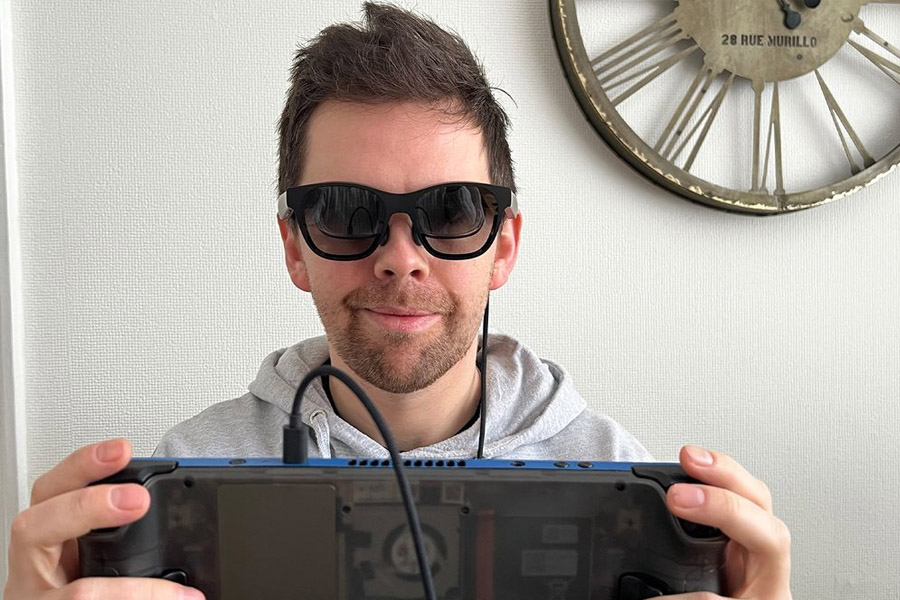
Handhelds pixelate large concepts. Steam Decks have limited capacity for rich interfaces, tiny typefaces, and vast landscapes. AR smart glasses paint a private, room-sized display in front of you as you hold the Deck. The effect is like seeing a matinee when the screen follows your attention rather than squinting at a postcard.
That extra canvas does more than beautify games. Reduces cognitive friction. Stock grids no longer feel like Tetris. Dialog trees feel less like spreadsheets. HDR glasses bring night, fog, and neon scenes to life with richer colors and deeper shadows. Benefits grow when you travel. No hotel TV, seatback screen, or prying eyes.
Picking the right glasses for your play style
Specs only tell half the story. The best choice depends on what you value most when you play.
- If you want HDR-first visuals at a light overall weight, the RayNeo Air 4 Pro stands out. It supports HDR10 and keeps pressure low, which helps during long sessions.
- If you want a display that stays anchored in space as you shift your head, glasses with 3DoF screen anchoring, such as XREAL 1S or Viture Beast, reduce the floating-screen sensation some users notice.
- If you care about maximum sharpness per eye, higher-per-eye resolutions help text legibility and UI-heavy games.
- If you travel light, total weight and weight distribution matter more than you think. A few grams can be the difference between breezy and bothersome. Look for balanced frames and adjustable nose pads.
- If you hate wearing extra audio gear, lean into glasses with capable built-in speakers. They preserve portability without muting the experience.
Consider your typical session length, the genres you play, and where you play most often. Then match features to habit rather than chasing a single headline spec.
A setup that sticks every time
The Deck plays nicely with most AR smart glasses that support DisplayPort Alt Mode over USB-C. The fast path to a reliable setup looks like this:
- Update SteamOS. Feature and stability improvements arrive often.
- Charge the Deck above 50 percent so you can test without battery anxiety.
- Connect glasses directly to the Deck’s USB-C port using the cable included with your glasses.
- Open Settings, then Display. Set external resolution to 1920×1080 for broad game compatibility and choose 60 Hz by default. Move to 120 Hz for lighter titles or retro collections.
- If your glasses support HDR10, enable HDR output in Display settings when the glasses are connected. Toggle per game as needed.
- In the Quick Settings performance menu, set a frame rate limit that aligns with your chosen refresh rate to eliminate uneven frame pacing.
- In per-game settings, scale the interface up slightly. Bigger screens make small text readable, but many PC UIs still assume a desk monitor. A gentle UI scale bump keeps reading comfortable.
Cable routing sounds minor but matters. A short braided cable that runs behind your ear and down your back gets out of the way when you adjust your grip or turn your head.
Power, heat, and the reality of battery life
AR glasses sip power from the Deck. You will see a measurable drop in runtime compared to the built-in screen alone. Mitigate it with a few tweaks:
- Cap frame rate at 60 for cinematic or strategy games.
- Use a USB-C power adapter or a compact power bank with pass-through charging when stationary or on flights.
- Prefer 1080p output in demanding games. The Deck spends fewer watts pushing stable frames at sensible resolutions.
The Deck’s fans may spin more often when driving an external display. Keep intake vents clear and avoid covering the back plate when the system warms up.
Comfort and long-session ergonomics
Comfort is chemistry between weight, balance, and fit. Keep these habits:
- Adjust nose pads so the bridge carries the load, not the tip of your nose.
- Tighten the temples just enough to stop sliding without pinching.
- Take short breaks: every 20 minutes, look at a far object for 20 seconds. Your eyes will thank you.
- Dim the display slightly in dark rooms to avoid eye fatigue from high-contrast scenes.
- If prescription inserts are offered for your glasses, use them. Stacking frames or wearing contacts for hours can get tiresome.
Some users prefer a tiny tilt so the virtual screen sits slightly higher than eye level. That posture keeps your neck relaxed, especially when reclining.
Where AR elevates gameplay the most
- Big RPGs: Dialogue, skill trees, and codex pages breathe on a larger virtual screen.
- Atmospheric action adventures: HDR-capable glasses deepen mood and texture.
- Strategy and sim games: Map-wide awareness improves decision making and reduces constant panning.
- Visual novels and text-heavy indies: Reading becomes a pleasure rather than a chore.
- Cloud streaming or remote desktop: A private display hides your session in shared spaces.
Couch sessions become more intimate. Travel sessions become more flexible. It is a simple upgrade that feels like a cheat code for comfort.
Where AR makes less sense
- Competitive shooters: You will feel more confident on a high-refresh desktop monitor with minimal variance in input and motion.
- Party couch games: A shared TV keeps everyone in the loop.
- Fast-twitch 120 Hz targets in heavy games: The Deck often prefers stable 60 over chasing 120.
If your goal is sweat-and-tears ranked play, AR glasses are a great second screen but not a replacement for your main monitor.
Docked and living room setups
With USB-C passthrough, Deck docks can run glasses. This powers your Deck and frees Bluetooth for a controller while outputting to glasses. This hybrid setup works well in a living room: glasses for privacy and immersion, controller for comfort, dock for electricity.
When docking, keep cable length short to reduce signal issues. If you see dropouts, connect the glasses directly to the Deck for a quick A/B test.
Troubleshooting without panic
- No signal after plugging in: Reseat the cable, then check Display settings to ensure the external display is active. Try a different USB-C cable if you own one.
- HDR looks washed out: Toggle HDR off and back on, then restart the game. Some titles require a relaunch to apply tone mapping correctly.
- Audio not playing through glasses: Open the audio output selector in Quick Settings and pick the glasses as the output device.
- Stutter at 120 Hz: Drop to 60 Hz and set a 60 fps cap. Consistency beats spikes.
- Screen feels like it floats: Choose glasses with 3DoF anchoring or keep your head still during fine-aim moments. Many players acclimate within a session or two.
Treat each symptom once, not ten at a time. Small adjustments fix most snags.
Privacy, accessibility, and everyday life
A private floating screen shields your session from cafe and airport shoulder surfers. Built-in speakers leak less than laptop speakers, although headphones are most discreet. For accessibility, larger letters and steady viewing distance lessen reading fatigue, and positioning the virtual screen reduces neck strain compared to hunching over a handheld.
If you share your space, AR glasses give others the room back. No living room takeover, no brightness blasting the wall late at night.
FAQ
Do I need a special cable to use AR glasses with the Steam Deck?
Most AR smart glasses include a USB-C cable that carries both power and video using DisplayPort Alt Mode. Start with the bundled cable. If you replace it, choose a short, data-capable USB-C cable certified for video rather than a charge-only lead.
Will AR glasses work through a Steam Deck dock?
Yes, as long as the dock passes DisplayPort Alt Mode and provides adequate power. If you see intermittent signal issues or blank screens, test by connecting the glasses directly to the Deck to isolate the dock or cable.
Does HDR from the Deck actually work with AR glasses?
If your glasses support HDR10 and the game offers HDR output, you can enable HDR in the Deck’s display settings and in the game’s menu. Expect richer highlights and deeper shadows in titles that implement HDR well. If colors look off, toggle HDR off and back on or recalibrate in-game.
Can the Deck drive 120 Hz to AR glasses?
The Deck can output 120 Hz at 1080p to compatible glasses. Many modern games will not sustain 120 fps on Deck hardware, so use a 60 Hz cap for demanding titles and reserve 120 Hz for lighter or retro games where the headroom exists.
Is there noticeable latency when using AR glasses?
There is no additional input latency beyond the Deck’s normal display pipeline for a wired USB-C connection. Perceived latency usually comes from unstable frame rates or high refresh settings on heavy games. Cap the frame rate to match the refresh rate for the smoothest feel.
How do I keep text sharp and readable?
Use 1080p output, enable a modest in-game UI scale, and maintain the glasses’ “sweet spot” by adjusting nose pads so the virtual screen sits centered in your vision. Slightly lowering brightness in dim rooms can improve perceived clarity.
Can others see what I am playing when I use AR glasses?
No, the image is visible only to you. Audio leakage is minimal on most models with built-in speakers, but headphones remain the most private solution in quiet spaces.
What if I wear prescription glasses?
Many AR glasses accommodate prescription inserts or include adjustable focus. If inserts are offered for your model, they are the most comfortable long-term solution. Otherwise, ensure the frames fit over your glasses without pressure points and check for light gaps that can reduce contrast.
How do I stop the virtual screen from drifting when I move my head?
Choose glasses with 3DoF screen anchoring if persistent drift bothers you. If your model lacks anchoring, reduce rapid head movements during precise UI navigation, or position your headrest to minimize movement while you play.